
 Travel Essentials
 Travel Essentials

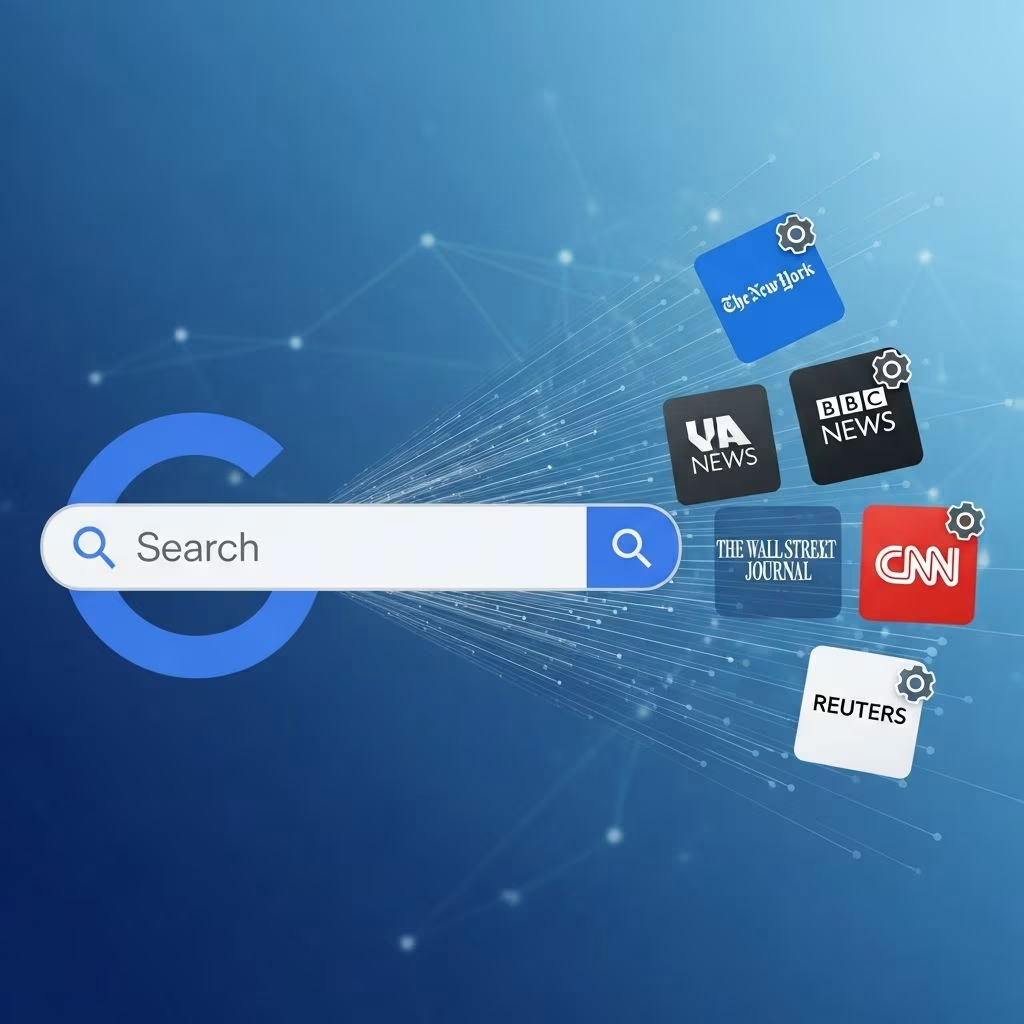
Learn how to personalize your Google Search experience by adding preferred news sources to see content from your favorite publications more frequently in Top Stories.
 Travel Essentials
In today’s digital landscape, the volume of information available at our fingertips can feel overwhelming. Every day, thousands of news articles are published across countless websites, and browsing through them all to find quality content from sources you trust has become increasingly challenging. Google Search has recognized this problem and introduced a powerful personalization feature that puts you in control of your news consumption experience.
Google Search has evolved significantly over the years, moving from a simple search engine to a comprehensive information hub. One of the most valuable additions to this platform is the ability to customize which news sources appear most prominently in your search results. Rather than relying on an algorithm that may prioritize sensationalism or broad appeal, you now have the option to tell Google exactly which publishers and outlets you value most.
This feature addresses a fundamental challenge that modern news consumers face: finding reliable, trustworthy information among a sea of competing sources. Whether you prefer specialized publications that cover niche topics, local news outlets that focus on your community, or major international news organizations, Google’s preferred sources feature allows you to build a personalized information ecosystem tailored to your specific interests and values.
Before diving into the customization process, it’s important to understand how Google’s Top Stories section operates. When you perform a search on Google that relates to current events or breaking news, you’ll notice a designated section near the top of your results page labeled “Top Stories.” This section aggregates the most recent and relevant articles from various news publishers across the web.
The Top Stories section serves as a dynamic news feed that updates in real-time, ensuring you see the latest information on topics you’re searching for. However, without customization, this section may display articles from a wide variety of sources, some of which you may prefer over others. The sources that appear are determined by Google’s algorithms, which consider factors like freshness, relevance, and authority. By adding preferred sources, you can influence which publishers’ content bubbles to the top of this section.
Adding preferred news sources through the Google mobile application is a straightforward process designed to take just a few minutes. Here’s how to get started:
If you prefer using a desktop or laptop computer to customize your Google Search experience, the process is equally accessible. The desktop method provides the same functionality as the mobile approach, though the interface layout differs slightly to accommodate a larger screen.
Start by opening your web browser and navigating to google.com. Make sure you’re logged into the Google account you use for most of your searches. Once authenticated, look for your profile picture icon, typically found in the upper right area of the page. Click on this icon to reveal a dropdown menu containing various account options and settings.
From this menu, select “Search personalization” to access your customization preferences. You’ll notice several options for personalizing your Google Search experience. Scroll through these options until you locate the “Source preferences” feature. Click on source preferences to open the interface where you can manage your news sources.
The desktop version presents you with a text input field where you can type the name of news publications or their URLs. Type the first source you’d like to add and select it from the dropdown suggestions that appear. Repeat this process for each additional source you want to prioritize. The desktop interface also displays all your selected sources in a clear list format, making it easy to see exactly which publications you’ve chosen to prioritize.
One of the most appealing aspects of Google’s preferred sources feature is its inclusivity. The platform accepts virtually any website that publishes news content, giving you remarkable flexibility in curating your information diet. This means you’re not limited to major national news organizations—the feature accommodates everything from specialty publications to regional outlets.
Consider adding sources that align with your specific interests and expertise. If you’re passionate about technology, you might add technology-focused news websites. If you follow sports closely, sports journalism outlets would be valuable additions. For those interested in travel journalism, lifestyle publications, business reporting, or environmental coverage, appropriate sources exist for virtually every topic imaginable.
This democratic approach to source selection means that independent journalists, startup news organizations, and specialized publications have the same ability to appear in your customized Top Stories section as established major media outlets. You have complete control over building a media diet that reflects your values, interests, and preferred communication style.
Your preferred sources are not permanent fixtures. Google’s system has been designed with flexibility in mind, allowing you to modify your selections at any time. Whether you want to add new sources as your interests evolve, remove publications you’re no longer interested in, or completely reorganize your preferences, you can make these adjustments whenever you’d like.
If you previously participated in Google’s Labs program and had selected preferred sources there, your existing selections will automatically carry over when the feature became broadly available. This means you won’t lose your carefully curated list if you were an early adopter of the feature.
To manage your selections, return to the source preferences section through either your mobile device or desktop browser. You’ll see your complete list of selected sources, and you can unchecked sources you no longer want to prioritize or add new ones to your list. The changes typically take effect relatively quickly, though you may want to refresh your search results to see the updated arrangement immediately.
After you’ve added your preferred sources to Google Search, you should begin noticing changes in how your Top Stories section is populated. Articles from the publications you selected should appear more frequently and more prominently than before. Google will prioritize showing you content from these sources when they publish articles relevant to your search queries.
However, it’s worth noting that this doesn’t mean you’ll only see content from your preferred sources. Google maintains a balanced approach that ensures you still see quality content from other publishers when it’s particularly relevant or timely. The feature essentially weights your preferred sources higher in the algorithm, giving them preference when multiple high-quality articles on the same topic are available.
You’ll also notice that some searches may display a dedicated “From your sources” section on the results page, which specifically showcases recent articles from the publications you’ve prioritized. This section makes it even easier to stay updated with content from the outlets you trust most.
To get the most out of Google’s preferred sources feature, consider how many sources to add to your list. While you can technically add unlimited sources, research indicates that users find the feature most effective when they maintain a thoughtfully curated collection. Adding too many sources may dilute the personalization benefits, while too few might limit your exposure to diverse perspectives.
Think strategically about which publications align with your information needs and values. Include a mix of sources: perhaps one or two major publications you respect, specialized outlets that cover topics you care about deeply, and maybe a local news source that keeps you informed about your community. This balanced approach ensures you receive both breadth and depth in your news consumption.
Remember to periodically review and update your preferred sources as your interests evolve or as new publications launch that better serve your needs. The feature is designed to grow and change with you, supporting different information needs at different times in your life.
Your preferred sources selections are tied to your Google account, which means they sync across all your devices. If you use multiple devices for searching, your customization will follow you automatically, ensuring a consistent experience whether you’re searching on your phone, tablet, or computer. This synchronization happens seamlessly in the background, requiring no additional effort on your part.
However, if you value privacy and prefer not to have your browsing preferences tracked across devices, you have the option to modify your privacy settings within your Google account. You maintain control over what data Google retains and how it uses information about your search habits.
Google’s preferred sources feature represents a broader shift in how technology companies approach news distribution and information access. Rather than presenting all users with the same algorithmic ranking of news articles, platforms are increasingly recognizing that people have diverse information needs and preferences. This personalization puts users in the driver’s seat of their information consumption.
This approach democratizes the news landscape by giving readers the power to support the publications they value most. Smaller or more specialized publications can gain visibility and audience loyalty based on quality rather than advertising budgets or algorithmic manipulation. Simultaneously, users gain confidence that they’re seeing content from sources they’ve actively chosen to trust.
The feature also addresses concerns about filter bubbles and algorithmic bias by giving users explicit control over their information diet. Rather than allowing algorithms to make these decisions invisibly, you make conscious choices about which publishers you want to prioritize, maintaining agency over what content influences your understanding of the world.