


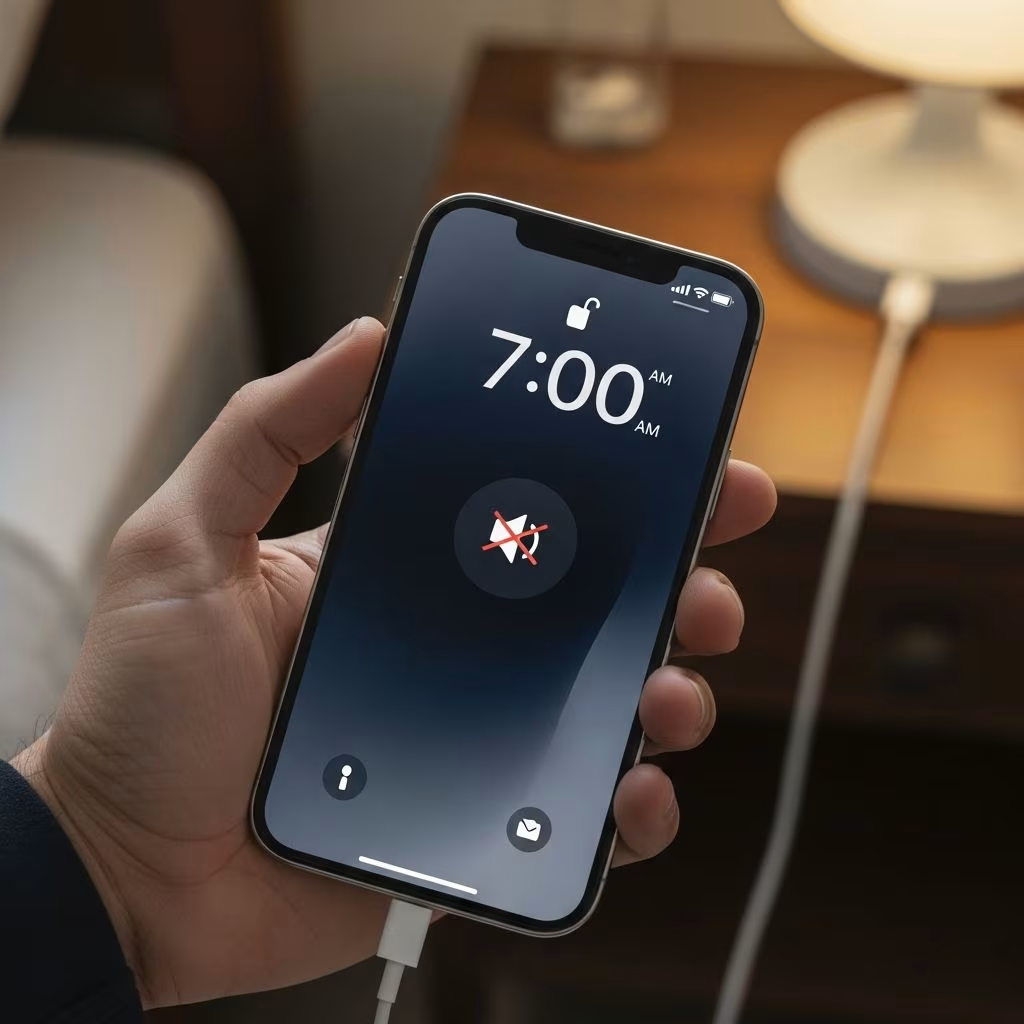
Many iPhone users have experienced the frustration of setting an alarm only to discover it produces no sound when it triggers. This widespread issue affects devices across multiple iOS versions and can prevent users from waking up on time for important commitments. Understanding the root causes and implementing targeted fixes can help restore your alarm’s audio functionality and ensure reliable notifications when you need them most.
Understanding Why Your iPhone Alarm Goes Silent
Before attempting fixes, it’s helpful to understand the various factors that can cause your alarm to fail silently. Your iPhone’s alarm system depends on multiple interconnected settings and features working in harmony. When any single component malfunctions or receives incorrect configuration, your alarm may fail to produce sound despite appearing to be properly set.
The silent alarm phenomenon is not a single, isolated bug but rather the result of several potential causes operating independently or in combination. Recognizing which factor is responsible for your specific situation allows you to apply the most effective solution quickly.
Fundamental Checks Before Advanced Troubleshooting
Start your troubleshooting process by verifying basic alarm configuration. Open your Clock application and navigate to the Alarms section to review your existing alarms. Examine each alarm’s settings carefully by tapping on it to check the following details:
- The assigned sound or tone that should play when the alarm triggers
- The repeat pattern to confirm the alarm is scheduled for the correct days
- The alarm time to ensure it’s set for the intended hour and minute
- Whether the alarm remains active or has been inadvertently disabled
Many silent alarm cases result from simple configuration oversights rather than technical failures. An alarm set to trigger at 5:00 PM instead of 5:00 AM, or one set to repeat only on weekdays when you need it on the weekend, can create the impression of a malfunction.
Volume Settings and the Ringer Control System
Your iPhone distinguishes between multiple volume control systems: the ringer volume affects calls and alarms, while media volume controls music and videos. Alarms respond specifically to ringer volume adjustments, not media volume. This distinction is critical because many users mistakenly adjust media volume while leaving ringer volume at minimum levels.
To properly configure volume settings:
- Open the Settings application on your iPhone
- Navigate to the Sounds & Haptics menu option
- Locate the Ringtone and Alerts slider control
- Drag the slider fully to the right to maximize alarm volume
- Verify the slider position visually to confirm the adjustment took effect
Additionally, disable the “Change with Buttons” option if it appears enabled. This setting allows physical volume buttons to modify alert volume accidentally, potentially lowering your alarm volume without your awareness. By disabling this feature, you prevent unintended volume adjustments that could render your alarms inaudible.
The Silent Mode Switch and Its Impact
Your iPhone includes a physical mute switch on its left side that can silence notifications and alerts. While alarms are theoretically designed to override Silent Mode, this switch can sometimes interfere with proper alarm operation. Verify that this switch is flipped toward the screen (ring mode position) rather than toward the back of the device.
The position of this physical switch is often overlooked during troubleshooting but can be a quick solution to restore alarm audio. Check the switch’s position before resorting to software-based fixes.
Attention-Aware Features and Their Effect on Alarms
iPhones with Face ID technology include a feature called Attention-Aware Features that uses the front-facing camera to detect whether you’re looking at your device. When this feature determines that you’re actively viewing the screen, it may reduce the volume of incoming calls, alerts, and alarms.
This adaptive behavior, while potentially useful in some contexts, can cause alarms to play at barely audible levels or appear completely silent. Disabling this feature often resolves silent alarm complaints:
- Open Settings and select Face ID & Passcode
- Enter your Face ID or passcode when prompted
- Scroll down to find Attention-Aware Features
- Toggle this feature to the off position (the switch should appear gray when disabled)
- Restart your device to ensure the change takes full effect
Many users report that this single adjustment resolves their silent alarm issues completely.
Focus Modes and Do Not Disturb Configuration
Your iPhone’s Focus feature, accessible through Settings, allows you to customize notification behavior across different situations. Sleep Focus, in particular, can silence incoming notifications and alarms if configured incorrectly. While Focus modes theoretically shouldn’t affect alarms, reviewing these settings can help identify conflicts.
To examine your Focus configuration:
- Open Settings and navigate to Focus
- Review each active Focus mode, particularly Sleep Focus
- Check whether alarms are explicitly allowed in these modes
- Disable any Focus mode that might be active during your intended alarm time
- Use the Control Center to verify that Do Not Disturb is not activated when you need alarms to function
The crescent moon icon in your Control Center indicates active Do Not Disturb status. While alarms should theoretically sound regardless of this mode, it’s worth disabling it as part of comprehensive troubleshooting.
Bluetooth and External Audio Device Conflicts
If your iPhone is paired with Bluetooth speakers, headphones, or other audio devices, your alarm sound may be routed through these external devices rather than your phone’s speakers. When these devices are out of range or powered off, the alarm sound goes unheard despite proper iPhone configuration.
Review your Bluetooth connections by navigating to Settings > Bluetooth. Examine the list of connected or previously connected devices. Disconnect any speakers, headphones, or audio devices that you don’t actively need. Pay particular attention to devices that may connect automatically when powered on, as these can silently redirect alarm audio without your notice.
Alarm Sound Selection and Configuration
Each alarm must have an explicit sound assigned to it. If an alarm is set to “None,” it will not produce any audio regardless of volume settings or other configurations. When creating or editing alarms:
- Open the Clock app and select or create an alarm
- Tap on the Sound field to view available options
- Select an actual alarm tone rather than the None option
- Save these changes before exiting the alarm editor
Alarms that were previously functional may revert to “None” following iOS updates or device restarts. Recreating alarms entirely, rather than simply editing existing ones, sometimes resolves persistent silent alarm issues.
Software Updates and Their Role in Alarm Functionality
Apple periodically releases iOS updates that address various bugs and performance issues. While the silent alarm problem persists across multiple iOS versions, newer updates may provide fixes that weren’t available in your current version. Keeping your iPhone updated with the latest available iOS version ensures you benefit from any alarm-related improvements Apple has implemented.
To check for available updates, open Settings, navigate to General, and select Software Update. Install any available updates and restart your device afterward.
Advanced Troubleshooting: Deleting and Recreating Alarms
When basic troubleshooting fails, delete the problematic alarm entirely and create a new one from scratch. This approach resets the alarm’s configuration and can clear any corrupted settings that might cause silent operation:
- Open the Clock app and navigate to Alarms
- Swipe left on the alarm you want to remove
- Tap the Delete button to remove it completely
- Create a new alarm with identical timing and repeat settings
- Ensure a proper alarm sound is selected before saving
This method proves particularly effective for alarms set to repeat on specific days or for recurring alarms that have developed issues over time.
Device Restart as a Final Reset Step
Software glitches can persist in your iPhone’s memory even after changing settings. A full device restart can clear temporary files and reset processes that might be causing alarm issues:
- Press and hold the power button on your device
- Slide the power-off slider when it appears
- Wait at least 30 seconds for your device to fully shut down
- Press the power button again to turn the iPhone back on
- Allow the device to complete its startup sequence before testing alarms
This simple yet effective step often resolves mysterious software-related issues, including silent alarm problems.
Comparison of Common Causes and Solutions
| Potential Cause | Typical Symptoms | Recommended Solution |
|---|---|---|
| Low Ringer Volume | Alarm plays but very quietly | Increase Ringer and Alerts volume in Settings |
| Attention-Aware Features | Alarm silent when looking at screen | Disable in Face ID & Passcode settings |
| Silent Mode Activated | No alarm sound at any time | Flip physical mute switch to ring position |
| No Sound Assigned | Alarm shows but produces no audio | Select alarm sound in Clock app settings |
| Bluetooth Device Connected | Sound routes to external device | Disconnect Bluetooth devices in Settings |
| Focus Mode Interference | Alarm silent during specific times | Review and adjust Focus settings |
Frequently Asked Questions
Q: Why does my alarm work sometimes but not other times?
A: Inconsistent alarm behavior often indicates interference from Attention-Aware Features, Bluetooth connections, or Focus modes that only affect certain alarms or times. Review each of these settings systematically to identify which factor is responsible for the intermittent issue.
Q: Will my iPhone alarm sound if my phone is on Silent mode?
A: While alarms are designed to override Silent mode, the physical mute switch can sometimes interfere with proper operation. Ensure the switch is in the ring position rather than silent position, and verify that your ringer volume is set to maximum levels.
Q: How do I know if my alarm sound is actually assigned?
A: Open the Clock app, select an alarm, and tap the Sound field. If “None” appears selected, no sound will play. Select any available alarm tone to assign audio to your alarm.
Q: Should I use Do Not Disturb if I need my alarm to work?
A: While alarms theoretically function during Do Not Disturb mode, deactivating this mode before sleep can eliminate potential conflicts. Check the Control Center to verify Do Not Disturb is not active when you need alarms to sound reliably.
Q: What’s the difference between ringer volume and media volume on iPhone?
A: Ringer volume controls calls, alerts, and alarms, while media volume controls music and videos. Alarms respond only to ringer volume adjustments. Ensure you’re modifying the correct volume control for alarm audio.
Preventative Measures for Ongoing Reliability
Once you’ve successfully resolved your silent alarm issue, implement preventative practices to avoid recurrence. Periodically verify that your alarms display assigned sounds rather than “None.” Check your volume settings monthly to ensure ringer volume remains at appropriate levels. Review your Bluetooth connections quarterly and disconnect devices you no longer actively use. Keep your iOS software current by installing updates as soon as they become available.
By maintaining awareness of these settings and performing regular maintenance checks, you can prevent silent alarm problems from developing and ensure your alarms remain reliably functional when you depend on them most.
References
- How to avoid the iPhone’s notorious ‘silent alarm’ bug — PopSci. Accessed 2026. https://www.popsci.com/diy/iphone-silent-alarm-bug/
- Fix your iPhone alarm not going off — Asurion. 2026. https://www.asurion.com/connect/tech-tips/fix-iphone-alarm-not-going-off/
- How to fix iPhone alarms that go off silently — AppleInsider. 2026. https://appleinsider.com/inside/ios-26/tips/how-to-stop-your-iphone-alarm-from-going-off-without-sound-in-ios-26
- Apple Community Discussions: Silent Alarm After iOS Update — Apple. 2026. https://discussions.apple.com/thread/255986804