 Travel Essentials
 Travel Essentials

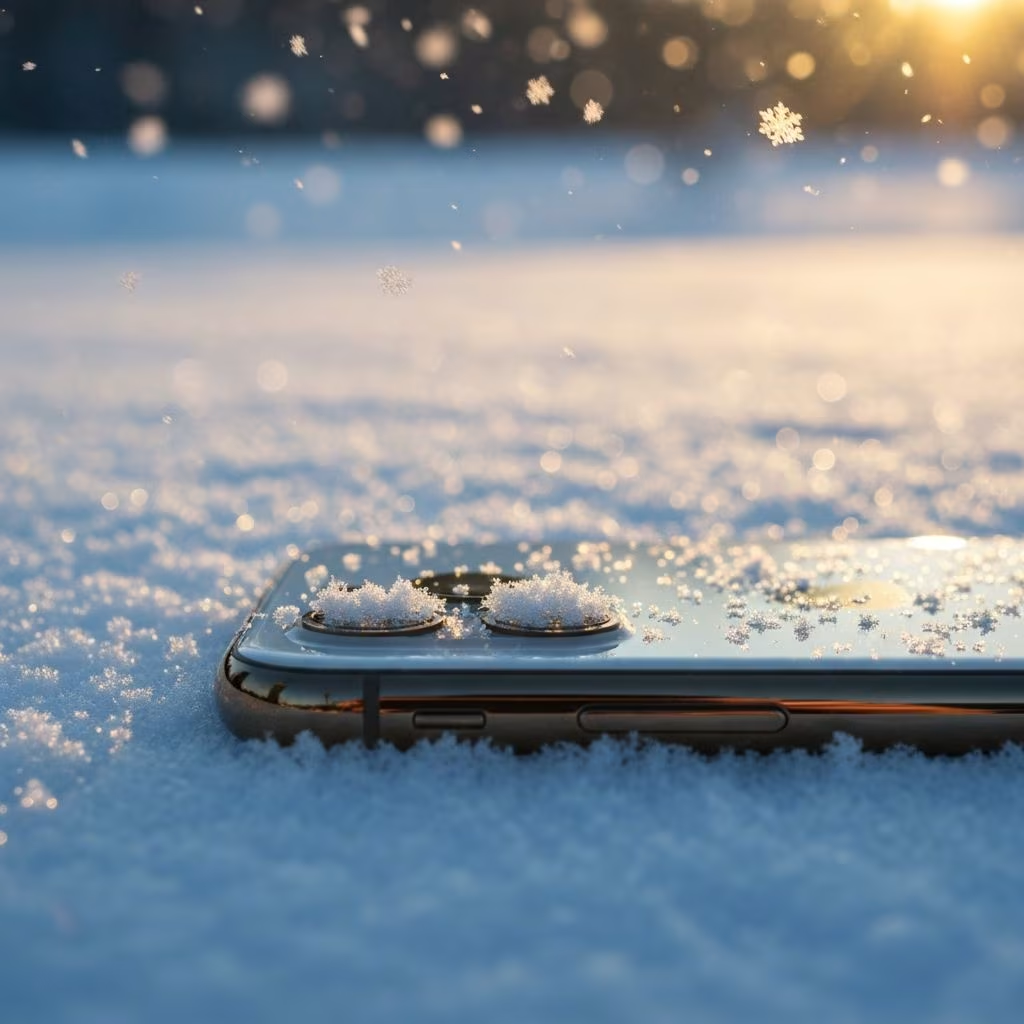
Discover proven iPhone tips for photographing snow: adjust exposure, use burst mode, edit for vibrancy, and more to create breathtaking winter images effortlessly.
 Travel Essentials
Snow transforms ordinary landscapes into enchanting vistas, and your iPhone is perfectly equipped to seize these fleeting moments. With targeted adjustments and creative approaches, anyone can produce professional-grade images of powdery fields, falling flakes, and frosty details. This guide delivers actionable strategies drawn from photography best practices, emphasizing camera settings, scene selection, and post-processing to overcome snow’s tricky lighting and ensure crisp, vibrant results.
Before venturing into the chill, optimize your iPhone’s settings to handle snow’s high reflectivity and motion. Snow scenes often fool automatic metering, resulting in dull grays instead of brilliant whites. Start by cleaning your lens meticulously—fingerprints or smudges exacerbate glare in bright conditions.
These tweaks provide a solid foundation, allowing flexibility during shoots and edits.
Snow’s vast white expanses trick your iPhone’s light meter into underexposing shots, turning pristine powder gray. Manual intervention is key to restoring natural brightness without blowing out textures.
Tap your screen to set focus on a mid-tone area, like a tree trunk or clothing, then swipe up to boost exposure by 0.5 to 1.5 stops. Preview the live view to retain snow’s subtle textures—overdoing it clips highlights, losing sparkle. For consistency across bursts, tap and hold to lock Auto Exposure/Focus (AE/AF), marked by ‘AE/AF Lock’ on screen.
| Scenario | Exposure Adjustment | Why It Works |
|---|---|---|
| Overcast fresh snow | +1.0 stop | Counteracts diffused light for even whites |
| Sunny glare | +0.5 to +1.0 stop | Preserves shadow details without flare |
| Blue-tinted shade | +0.7 stop + warmth boost | Neutralizes cool tones for true whites |
Test exposures in Live Photos for before/after comparisons, ensuring optimal capture every time.
Beyond technical fixes, thoughtful framing turns snapshots into art. Leverage snow’s uniformity as a canvas for contrast and leading lines.
Seek color pops amid monochrome: crimson berries, golden lamps, or animal tracks inject vibrancy. Time shoots for golden hour when low sun casts long shadows, sculpting texture into the snow.
Static snow is stunning, but motion—like drifting flakes or playful jumps—brings scenes alive. iPhone excels here with high frame rates and burst capabilities.
For stills of action, activate Burst mode by holding the shutter. It fires 10 frames per second, letting you pick peak moments like mid-leap or perfect flake trails. Videos demand 60fps (switch in Camera app settings), panning slowly to avoid jitter. Lower exposure slightly for defined flakes against skies.
Post-capture, halve speed to 0.5x in iMovie or Photos editor—60fps at half speed yields silky 30fps slow-motion, ideal for social reels. Advanced users experiment with 120/240fps for hyper-dreamy effects, always exporting to 30fps for platforms.
While iPhone packs power, add-ons sharpen results in harsh conditions.
These elevate casual snaps to portfolio pieces with minimal effort.
Great edits amplify field work. Use Apple’s Photos app first, then third-party tools for polish.
Increase exposure selectively with the slider, then boost shadows for hidden details. Up contrast and clarity for snow definition—avoid over-sharpening to prevent noise. Warmth adjustment counters blue casts common in shade or dusk.
For distractions, employ object removal in Photos or TouchRetouch. Simulate flurries via overlay apps if none fell. ProRAW files shine here, offering non-destructive tweaks to shadows/highlights.
Quick Edit Workflow:
Fresh snow offers the purest canvas—rush out within hours post-storm before tracks mar it. Overcast days diffuse light evenly, avoiding harsh shadows; blue-hour twilight adds ethereal glow.
Dodge midday sun for softer results; embrace it for sparkling crystals. Track forecasts for light flurries, prime for motion shots.
Push boundaries with silhouettes against backlit snow, or macro frost via 2x telephoto. Stack bursts in apps like Image Blender for noise-free low-light. Experiment with Night mode for aurora-lit powder if conditions align.
Video pros layer slo-mo flakes over time-lapses for hypnotic hybrids.
| Mistake | Fix |
|---|---|
| Gray snow | Swipe up exposure pre-shot |
| Shaky videos | 60fps + slow pan |
| Blue tint | Warmth edit + third-party WB |
| Flat composition | Low angles, color contrasts |
Keep it warm indoors until shooting; use a microfiber cloth and lens hood. Avoid breathing directly on it.
Photos for basics, Snapseed for curves, Lightroom for RAW power, Mextures for overlays.
Yes—exposure taps and burst work universally; ProRAW limited to newer Pros.
60fps video, underexpose slightly, slow to 0.5x.
Rarely—prefer natural light or HDR; flash flattens scenes.